Virtual Display Manager 4 | 4.0.0.46322 (Nov 25, 2026)
Your workspace. On command.
Automate saved monitor splits, monitor snapshots, Windows virtual desktops, window movement and appearance. Discover supported controls, request a change and confirm the result.
Set up PowerShell automation
Requirements: A supported Windows installation running VDM 4, .NET Framework 4.8 or later, and Windows PowerShell 5.1 or PowerShell 7 on Windows. Use the VDMXPS.dll module supplied with that VDM 4 installation; the VDM Classic module is separate.
- Install VDM 4 and create the monitor splits you want to automate.
- Open PowerShell in the same interactive Windows user session as VDM. Run VDM normally first to complete any first-run or license prompts.
- Adjust the installation path below, import the module, then inspect its commands and syntax. The discovery calls can start VDM if it is not already running.
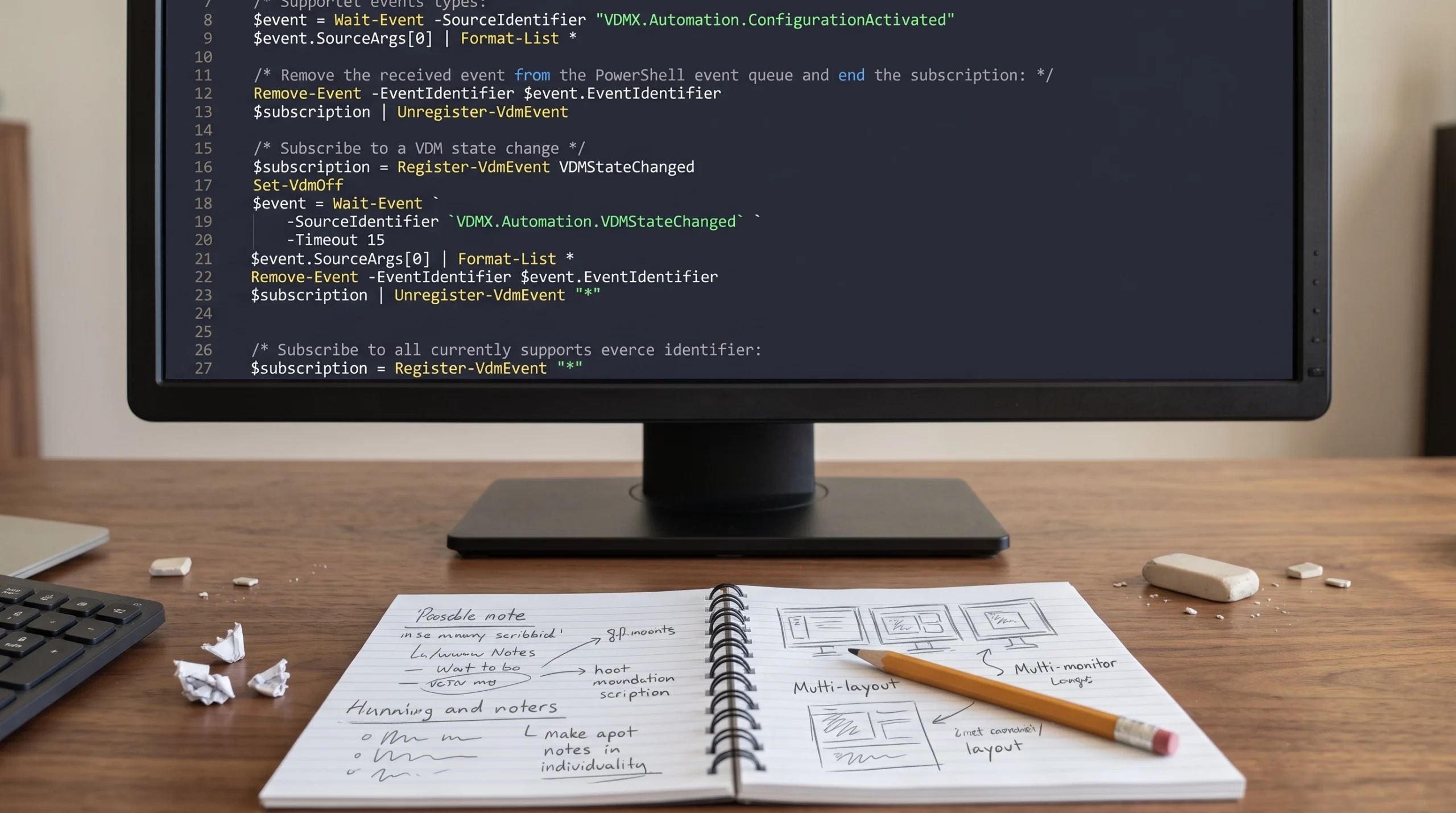
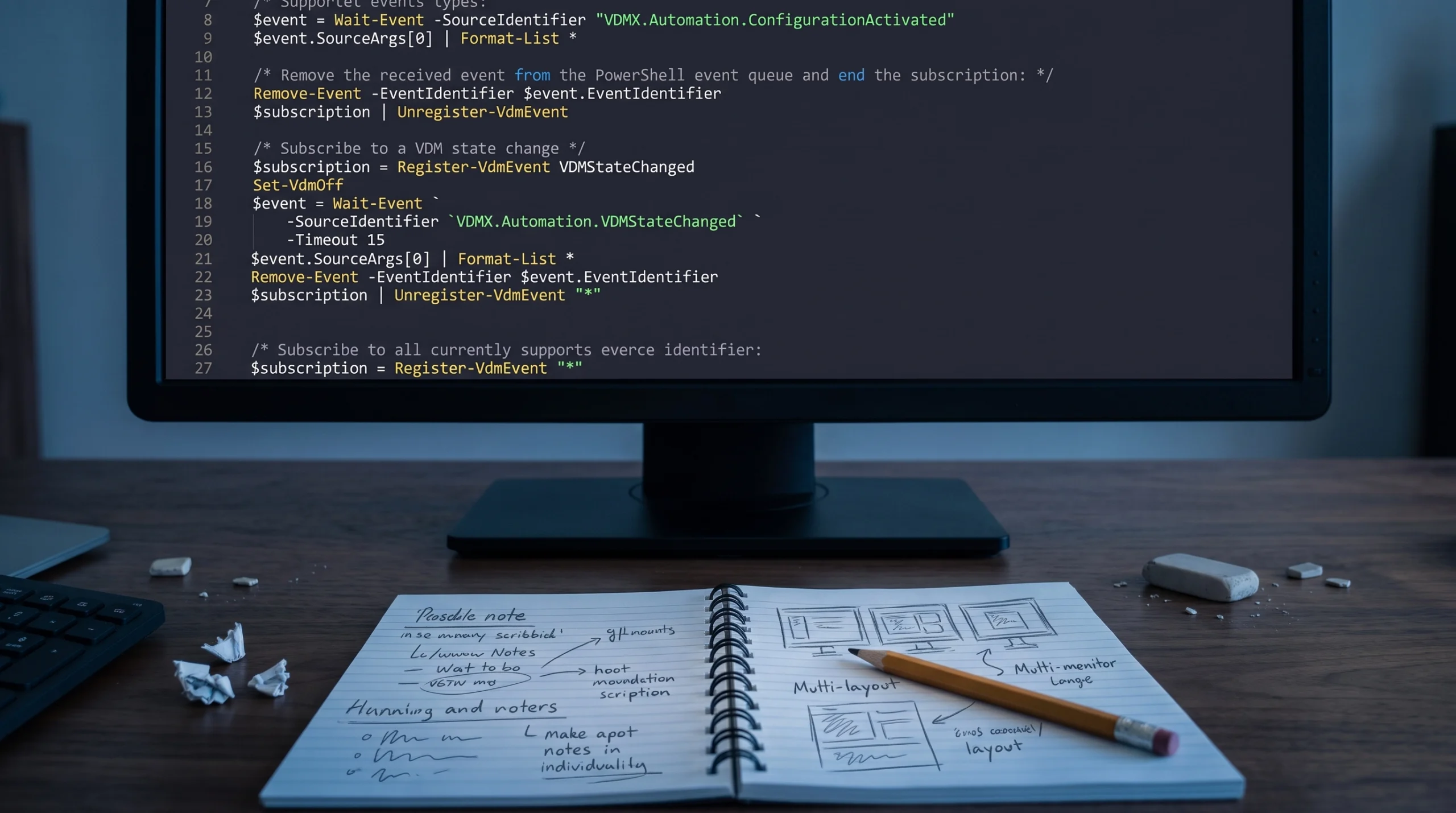
    $installRoot = 'C:\Program Files (x86)\VDM' # Adjust to your install.
$modulePath = Join-Path $installRoot 'System32\UI\VDMXPS.dll'
if (-not (Test-Path -LiteralPath $modulePath -PathType Leaf)) {
    throw 'Locate the module supplied with this VDM 4 release.'
}
$module = Import-Module $modulePath -PassThru -ErrorAction Stop
(Get-Item -LiteralPath $modulePath).VersionInfo.FileVersion
Get-Command -Module $module.Name | Sort-Object Name
Get-Command Move-VdmDisplayWindows -Syntax
Startup and completion
| Operation | Behavior |
|---|---|
Start-Vdm | Reuse the current-session runtime or start VDM quietly; wait up to 15 seconds for readiness. |
| Get / Set / Show | Can implicitly start an absent VDM runtime. Discovery is not necessarily process-state neutral. |
Stop-Vdm | Graceful stop; absent runtime is a successful no-op and is not started. |
| Completion | Use -ErrorAction Stop and read back state. Most setters do not return a success object. |
After upgrading VDM or its binary module, open a fresh PowerShell process. Remove-Module or Import-Module -Force does not unload an already loaded .NET assembly. Quiet startup can still encounter normal application or licensing prompts.
Discover and control the workspace
Selectors are mutually exclusive forms. Common PowerShell parameters are omitted.
| Command | Parameters and purpose |
|---|---|
Get-VdmConfigs | List configName, id and isActive for saved monitor splits. |
Get-VdmMonitorSnapshots | List saved physical-monitor snapshots: name and index. |
Get-VdmVirtualDesktops | List Windows desktops: name, index, guid and isActive. |
Get-VdmRuntimeOptions | Read VDM state, appearance, UI and transfer capabilities. |
Get-VdmDisplays | List current display Number, Left, Top, Right, Bottom. |
Set-VdmActiveConfig | -Name <string> OR -ID <string>. Activate a saved split. |
Set-VdmActiveMonitorSnapshot | -Name <string> OR -Index <string>. Restore a snapshot. |
Set-VdmActiveVirtualDesktop | -Name <string> OR -ID <string> OR -Index <string>. |
Move-VdmDisplayWindows | -Source <int> -Destination <int> [-ExpectedLayout <string>]. Move the eligible maximized group. |
Switch-VdmDisplayWindows | -First <int> -Second <int> [-ExpectedLayout <string>]. Swap eligible maximized groups. |
Move-VdmForegroundWindow | -Destination <int> [-ExpectedLayout <string>]. Move the window that is foreground when VDM processes the request. |
Set-VdmOn / Set-VdmOff | Two commands without command-specific parameters. Enable or disable VDM. |
Index selectors are strings; display-number selectors are positive integers. Display numbers describe regions in the current split, not Windows virtual desktops. Rediscover after layout/topology changes.
Appearance, UI and lifecycle
Use explicit values and handle application readiness separately from capability discovery.
| Command | Parameters and accepted values |
|---|---|
Set-VdmTheme | -Mode Light | Dark | System |
Set-VdmColorPalette | -Mode Blue | Graphite | Purple | Forest |
Set-VdmBackground | -Mode Off | Picture | Grid | GridId |
Set-VdmNavigator | -State On | Off |
Show-VdmConfigWindow | Open/reuse Configuration on its existing or remembered page. |
Set-VdmConfigWindowVisibility | -State On | Off | Toggle (explicitly required). |
Show-VdmSettings | Open Configuration and navigate to Settings. |
Show-VdmAuthenticator | Open normal Authenticator UI; does not return secrets. |
Show-VdmMonitorIds | Identify physical monitors. |
Show-VdmVirtualDisplayIds | Identify current VDM virtual displays. |
Start-Vdm / Stop-Vdm | Two lifecycle commands without command-specific parameters. |
Register-VdmEvent | -EventType ConfigurationActivated | VirtualDesktopChanged | VDMStateChanged | * |
Unregister-VdmEvent | -Subscription <object> OR -SubscriptionId <Guid>. Accepts subscription objects from the pipeline. |
Only Unregister-VdmEvent supports -WhatIf and -Confirm; other commands do not provide a dry-run mode.
Activating a saved split and turning VDM on are separate actions. Theme, palette and background setters take explicit values, not a Cycle option.
Select a split. Recall a setup.
Create layouts and snapshots in VDM first, then select them by fresh discovery.
Resolve a unique monitor split and confirm selection
    $wantedName = 'Daily work' # Example saved name.
$matches = @(Get-VdmConfigs -ErrorAction Stop |
    Where-Object { $_.configName -eq $wantedName })
if ($matches.Count -ne 1) { throw 'Expected one matching split.' }
$targetId = $matches[0].id
Set-VdmActiveConfig -ID $targetId -ErrorAction Stop
$active = @(Get-VdmConfigs -ErrorAction Stop |
    Where-Object { $_.isActive })
if ($active.Count -ne 1 -or $active[0].id -ne $targetId) {
    throw 'Active split was not confirmed.'
}
# Separate, deliberate enablement if your workflow needs it:
Set-VdmOn -ErrorAction Stop
Config in command names means monitor split. Prefer IDs after a unique name lookup. Current output has configName, id and isActive, without isDefault or a separate isPersisted property. Use explicit selector arguments rather than relying on bulk pipeline binding.
Restore a saved physical-monitor snapshot
    $wantedSnapshot = 'Docked desk' # Example; discover your names.
$matches = @(Get-VdmMonitorSnapshots -ErrorAction Stop |
    Where-Object { $_.name -eq $wantedSnapshot })
if ($matches.Count -ne 1) { throw 'Expected one snapshot.' }
Set-VdmActiveMonitorSnapshot -Name $matches[0].name -ErrorAction Stop
# Alternative: -Index ([string]$matches[0].index)
A snapshot can change monitor placement, mirroring, resolution, scaling and associated splits. Finish layout editing first. Snapshot output provides name/index, not a full topology report or active-snapshot flag. Confirm the screens after completion.
Switch desktops. Set the mood.
Windows virtual desktops, VDM display regions and appearance settings serve different purposes.
    $wantedDesktop = 'Research' # Example desktop name.
$matches = @(Get-VdmVirtualDesktops -ErrorAction Stop |
    Where-Object { $_.name -eq $wantedDesktop })
if ($matches.Count -ne 1) { throw 'Expected one desktop.' }
$targetGuid = $matches[0].guid
Set-VdmActiveVirtualDesktop -ID $targetGuid -ErrorAction Stop
$active = @(Get-VdmVirtualDesktops -ErrorAction Stop |
    Where-Object { $_.isActive })
if ($active.Count -ne 1 -or $active[0].guid -ne $targetGuid) {
    throw 'Desktop switch was not confirmed.'
}
Use the GUID through -ID for a stable desktop identity. Indexes are current list positions. These commands switch existing Windows desktops; they do not create, rename, reorder or delete them.
Choose explicit options, then read them back
    Set-VdmTheme -Mode Dark -ErrorAction Stop
Set-VdmColorPalette -Mode Forest -ErrorAction Stop
Set-VdmBackground -Mode GridId -ErrorAction Stop
Set-VdmNavigator -State On -ErrorAction Stop
Get-VdmRuntimeOptions -ErrorAction Stop |
    Select-Object VdmEnabled, Theme, ColorPalette, Background,
                  NavigatorVisible, ConfigWindowVisible
Theme is Light, Dark or System policy; System follows Windows rather than being a third fixed appearance. Palette is independent of theme. Background selects an overlay mode: Picture uses the existing configured image behavior; it is not a picture-file setter.
Readback confirms the reported option, not that every overlay pixel or application window has finished redrawing. Additional clients can change state between query and set.
Move one window or a group.
Use current display numbers and a fresh layout token to guard against a changed workspace.
    Get-VdmDisplays -ErrorAction Stop |
    Format-Table Number, Left, Top, Right, Bottom
$state = Get-VdmRuntimeOptions -ErrorAction Stop
if (-not $state.DisplayMoveAvailable) { throw 'Move unavailable.' }
# Example regions: confirm 1 and 2 exist in your current list.
Move-VdmDisplayWindows -Source 1 -Destination 2 `
    -ExpectedLayout $state.DisplayLayout -ErrorAction Stop
Display groups: maximized windows
Move-VdmDisplayWindows moves the eligible maximized-window group from source to destination. Switch-VdmDisplayWindows exchanges both groups. These group commands leave ordinary normal-state windows untouched. Eligibility is on the current Windows desktop; application guards and per-window checks still apply.
    $state = Get-VdmRuntimeOptions -ErrorAction Stop
if (-not $state.DisplaySwapAvailable) { throw 'Swap unavailable.' }
Switch-VdmDisplayWindows -First 1 -Second 2 `
    -ExpectedLayout $state.DisplayLayout -ErrorAction Stop
Foreground movement: normal or maximized
    $state = Get-VdmRuntimeOptions -ErrorAction Stop
if (-not $state.ForegroundMoveAvailable) { throw 'Move unavailable.' }
# Switch focus to the intended application during this delay.
Start-Sleep -Seconds 3
Move-VdmForegroundWindow -Destination 2 `
    -ExpectedLayout $state.DisplayLayout -ErrorAction Stop
The target is the foreground window when VDM processes the request. It may be the PowerShell console if focus has not changed. Normal-window movement preserves the existing size; maximized movement uses the existing VDM placement behavior. Desktop/taskbar, minimized, hidden and otherwise ineligible windows can be rejected.
A layout token rejects stale requests. Partial or uncertain movement can follow a reported error: inspect the workspace before retrying. These commands do not implement a transaction or automatic rollback.
Open the right tool.
Configuration, identification and Authenticator reuse the application UI.
    Show-VdmConfigWindow -ErrorAction Stop
Set-VdmConfigWindowVisibility -State Off -ErrorAction Stop
Set-VdmConfigWindowVisibility -State On -ErrorAction Stop
Show-VdmMonitorIds -ErrorAction Stop
Show-VdmVirtualDisplayIds -ErrorAction Stop
Show-VdmConfigWindow opens or reuses the remembered Configuration page. Show-VdmSettings explicitly navigates to Settings. Visibility On/Off/Toggle controls the Configuration window; prefer explicit On or Off when a script may be retried. Identification uses the normal overlay lifecycle, not a persistent visibility guarantee.
Check a capability before requesting its UI
    $actions = (Get-VdmRuntimeOptions -ErrorAction Stop).IntegrationActions
if ($actions -notcontains 'Authenticator') {
    throw 'Authenticator is not advertised by this host.'
}
Show-VdmAuthenticator -ErrorAction Stop
Authenticator automation opens the normal interface. It does not enumerate accounts, return one-time codes, reveal or export stored secrets, or bypass locking. IntegrationActions advertises supported requests, not current readiness: modal dialogs, editing, shutdown or other application guards can still reject an action.
React to completed changes.
Use MessageData for payloads and always clean up your live subscription.
    $sub = Register-VdmEvent -EventType 'VDMStateChanged' `
    -ErrorAction Stop
try {
    $event = Wait-Event -SourceIdentifier $sub.SourceIdentifier -Timeout 30
    if ($null -ne $event) {
        $event.MessageData |
            Select-Object EventType, Timestamp, Reason,
                          PreviousState, CurrentState
        Remove-Event -EventIdentifier $event.EventIdentifier
    }
} finally {
    $sub.Dispose()
}
# Alternative cleanup: Unregister-VdmEvent -Subscription $sub
| Event type | Event-specific payload |
|---|---|
ConfigurationActivated | PreviousConfigurationId/Name and CurrentConfigurationId/Name |
VirtualDesktopChanged | PreviousDesktopIndex/Guid and CurrentDesktopIndex/Guid |
VDMStateChanged | PreviousState and CurrentState |
All payloads include EventType, UTC Timestamp and Reason. Registration accepts the three types above or *. Its result contains SubscriptionId, RequestedEventType, EventTypes, SourceIdentifier and Dispose().
Wildcard registration uses VDMX.Automation.* as its subscription identifier, but events arrive on concrete sources such as VDMX.Automation.VDMStateChanged. Wait on those concrete channels or filter Get-Event. There is no durable replay/history guarantee; restart or reconnect requires a fresh subscription.
Make the workflow explicit.
Discover targets, request deliberate changes, then confirm reported state.
Prepare a known saved workspace
    $name = 'Daily work' # Example; use a real saved split.
$target = @(Get-VdmConfigs -ErrorAction Stop |
    Where-Object { $_.configName -eq $name })
if ($target.Count -ne 1) { throw 'Split name must resolve uniquely.' }
Set-VdmActiveConfig -ID $target[0].id -ErrorAction Stop
Set-VdmTheme -Mode System -ErrorAction Stop
Set-VdmNavigator -State On -ErrorAction Stop
Set-VdmOn -ErrorAction Stop
Get-VdmConfigs -ErrorAction Stop | Where-Object { $_.isActive }
Get-VdmRuntimeOptions -ErrorAction Stop |
    Select-Object VdmEnabled, Theme, NavigatorVisible
Cycle a policy using accepted explicit values
    $choices = @('Light', 'Dark', 'System')
$current = (Get-VdmRuntimeOptions -ErrorAction Stop).Theme
$index = [Array]::IndexOf($choices, $current)
if ($index -lt 0) { throw 'Unrecognized theme policy.' }
$next = $choices[($index + 1) % $choices.Count]
Set-VdmTheme -Mode $next -ErrorAction Stop
Get-VdmRuntimeOptions -ErrorAction Stop | Select-Object Theme
The same read/choose/set/readback pattern works for Background values Off, Picture, Grid and GridId, or explicit Navigator On/Off selection. Avoid a remembered local toggle counter when other clients may also change the setting.
These are ordered requests, not one atomic transaction. Failure after an earlier step does not undo that step. Coordinate writers if necessary and reconcile actual state before retrying an uncertain operation.
Read the error. Check the state.
Use a fresh process, the matching module and explicit error handling.
    try {
    Get-VdmRuntimeOptions -ErrorAction Stop | Format-List *
} catch {
    [pscustomobject]@{
        ErrorId = $_.FullyQualifiedErrorId
        Message = $_.Exception.Message
        Category = [string]$_.CategoryInfo.Category
    } | Format-List
    throw
}
| Symptom | What to check |
|---|---|
| Command missing | Locate the current installation DLL; open a fresh process after an update; inspect Get-Command -Syntax. |
| Startup / connection error | Same Windows session, responsive VDM, installation, licensing and pending application dialogs. |
| Action unavailable | Read capability fields; finish editing/topology work and handle the reported application guard. |
| Unexpected target | Rediscover names/IDs/display numbers. A foreground request targets the active window at dispatch. |
| Uncertain completion | Inspect actual state and windows before retrying. A setter may already have changed the workspace. |
| Events not received | Use MessageData; wait on concrete sources for wildcard registration; ensure the subscription process is still alive. |
Validate expected counts and required properties before passing returned data to the next step. For help, contact support@ishadow.com with your VDM and PowerShell versions, the command, and its exact error identifier and message. Exclude passwords, Authenticator values and other secrets.
Know the command boundary.
Create your workspace in VDM, then automate the supported controls.
| Area | Current boundary |
|---|---|
| Authoring | No split/template editing or snapshot capture/create/delete cmdlets. |
| Windows desktops | Switch existing desktops; no create/rename/reorder/delete surface. |
| Window control | Move a foreground window in normal or maximized state, or move and swap eligible maximized-window groups. |
| Sharing / languages | Use the native application or Stream Deck integration for display sharing and language selection. |
| Defaults / wallpaper | No Set-VdmDefaultConfig; Background selects mode, not a file path. |
| Events | Three completed semantic event types; no dedicated theme, palette, snapshot or sharing event. |
| Recovery | No multi-command transaction, universal completion deadline or automatic window-movement rollback. |
Keep the reference close.
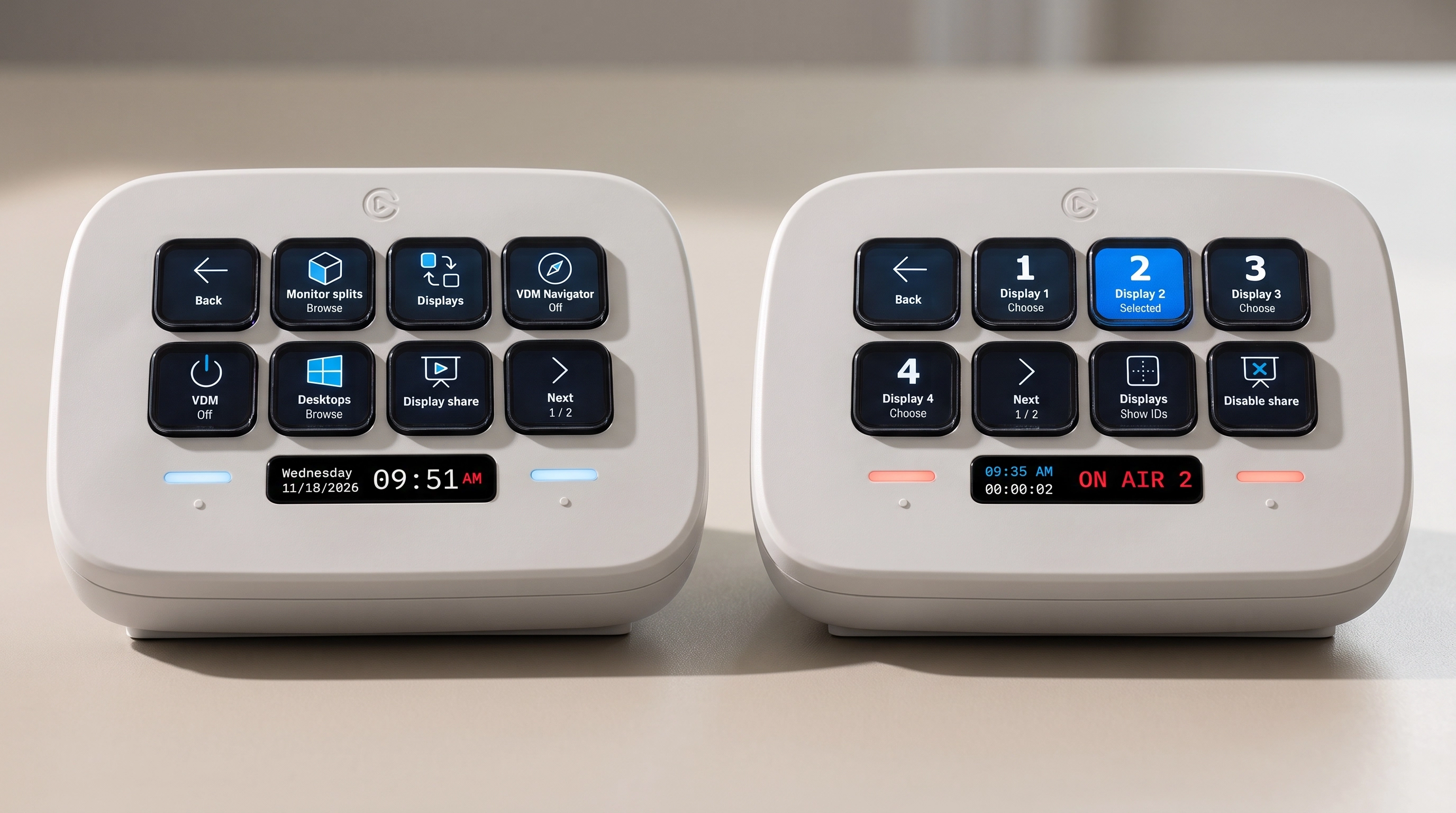
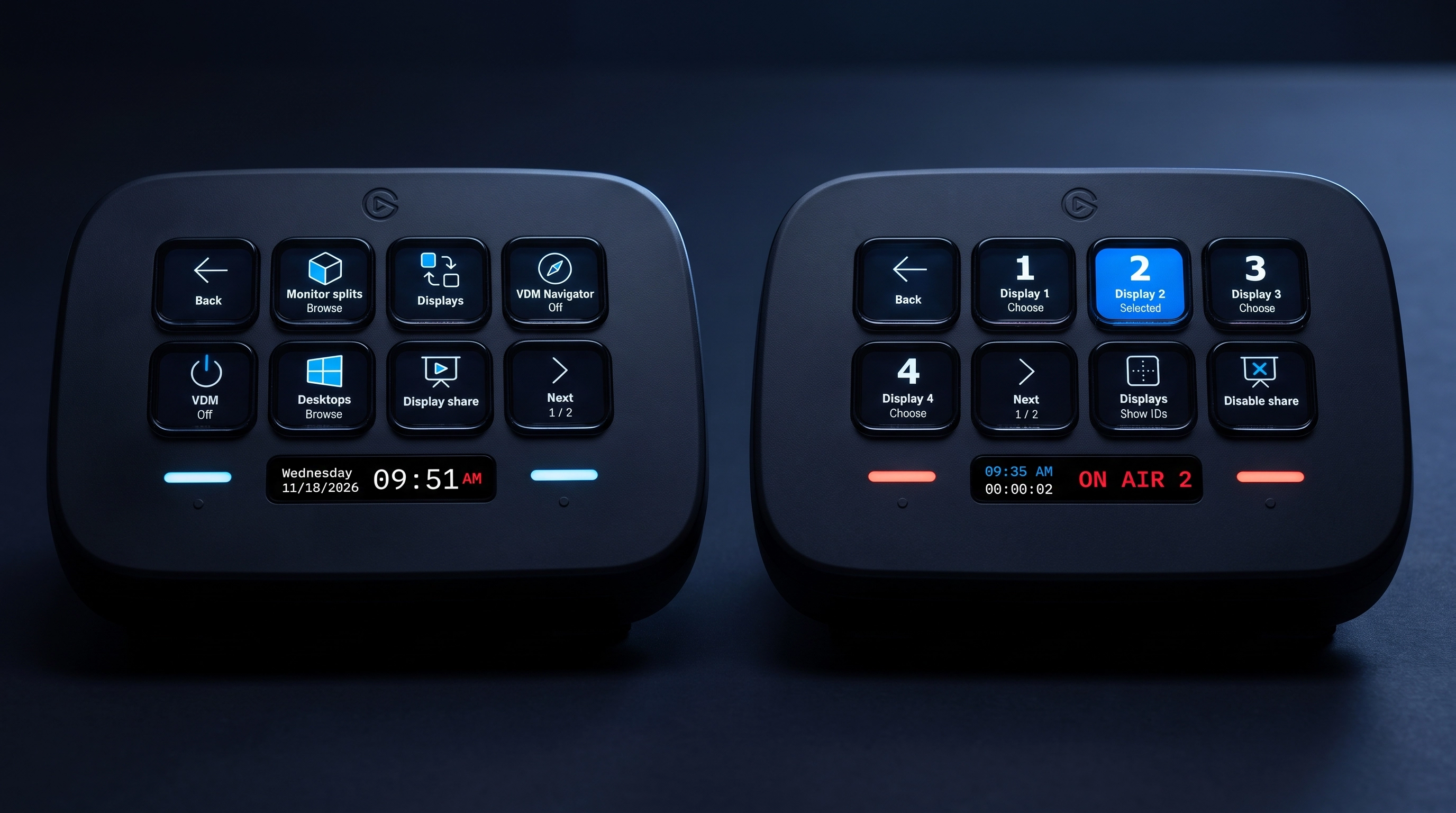
Prefer physical controls?
The separate Stream Deck plugin offers a physical workspace menu alongside PowerShell. See Elgato integration for supported hardware, setup and current plugin availability.