Virtual Display Manager 3 | 3.3.2.46315 (Nov 24, 2026)
Installation Troubleshooting
Start with the checks below when VDM Classic reports an installation or service problem.
Test your intended environment before deployment. See the Support Policy and Software Agreement for coverage and terms.
If you do encounter VDM installation issues, here are some steps that can help to troubleshoot and find a resolution.
Before going further, make sure the issue is not related Antivirus “FALSE POSITIVES”, which can be checked via VirusTotal, for example.
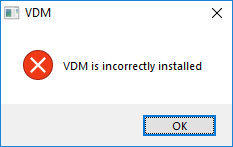
Message “VDM is incorrectly installed” is usually associated with VDM service “TeknicaVdmSvc” not running:
A few way to check service status:
- Use Services applet
- Use Service Control Manager utility “
SC.exe” at command-line.
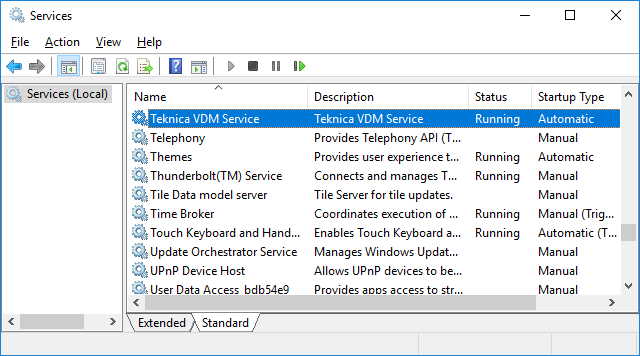
Find “Teknica VDM Service” in Services applet and check if it is running, if not – try to start:
The same via elevated command-line after running status check on VDM related service.
SC QUERYEX TeknicaVdmSvc
To start service from command-line:
SC START TeknicaVdmSvc
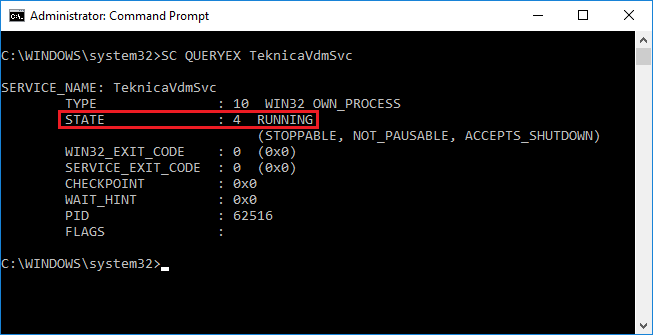
In case there was an error in starting VDM services, there are 3 options:
- Reinstall VDM (reboot required)
- With existing installation re-run VDM service registration via
VdmSerup.exeutility - Use
SC.execommand with existing installation present
[1] is self-explanatory.
[2] Steps with VdmSetup.exe using command-line (elevation is automatic):
Unregister and register service from “C:Program Files (x86)VDMSystem32” folder for 64-bit windows, “C:Program FilesVDMSystem32” on 32-bit.
    VdmSetup.exe -u
VdmSetup.exe -i
#3 is the most comprehensive, though the most reliable. Here are the steps:
Stop and delete service VDM related service.
    SC STOP TeknicaVdmSvc
SC DELETE TeknicaVdmSvc
Register VDM service again and start. Make sure to keep all quotation marks as prescribed.
    SC CREATE TeknicaVdmSvc binpath=""C:Program Files (x86)VDMSystem32VdmSvc64.exe"" displayname="Teknica VDM Service"
SC CONFIG TeknicaVdmSvc start=auto
SC DESCRIPTION TeknicaVdmSvc "Teknica VDM Service"
SC START TeknicaVdmSvc
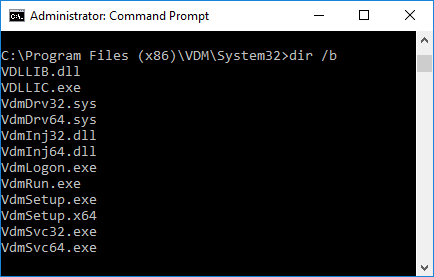
As mentioned at the beginning, installation issues can be related to Antivirus “FALSE POSITIVES” behaviour. Make sure to check that all VDM service files are located in “C:Program Files (x86)VDMSystem32” folder on 64-bit Windows (“C:Program FilesVDMSystem32” on 32-bit) and were not removed by local Antivirus software. All the files should by signed by Teknica Software Inc certificate with additional Microsoft signatures for “*.sys” files. Here are all VDM service related files at the time of this writing:
Legacy Windows Versions
In case there is an interest in VDM on legacy OS (Windows XP, Vista, 7, 8/8.1, Windows Server 2003/2003R2, 2008/2008R2) please send your request via the feedback form.