Virtual Display Manager 4 | 4.0.0.46322 (Nov 25, 2026)
Your workspace. One touch away.
Add a single VDM 4 key. An automatic hierarchy puts most VDM functionality within reach: pixel-perfect splits, window movement, monitor snapshots, Windows virtual desktops and display sharing.
Change the workspace directly, without the repeated restoring, dragging, resizing and re-maximizing.
Set up your first VDM key
Supported device: Stream Deck Neo on Windows. The hierarchical menu and Infobar shown here are designed for Neo; other Stream Deck models are not currently listed as supported.
Requirements: Stream Deck software 7.6 or later, .NET Framework 4.8 or later, and matching VDM 4 and plugin releases. Use the plugin and VDM in the same interactive Windows user session. macOS is not supported.
Plugin installation: VDM 4 installation includes an option to install a matching Elgato plugin. Select this option during setup. A Marketplace download is not offered here yet.
- Install VDM 4 and create a monitor split.
- In the VDM 4 installer, select the option to install the matching Elgato plugin.
- Run VDM 4, then find Virtual Display Manager in the Stream Deck actions list. If it does not appear after installation, restart Stream Deck.
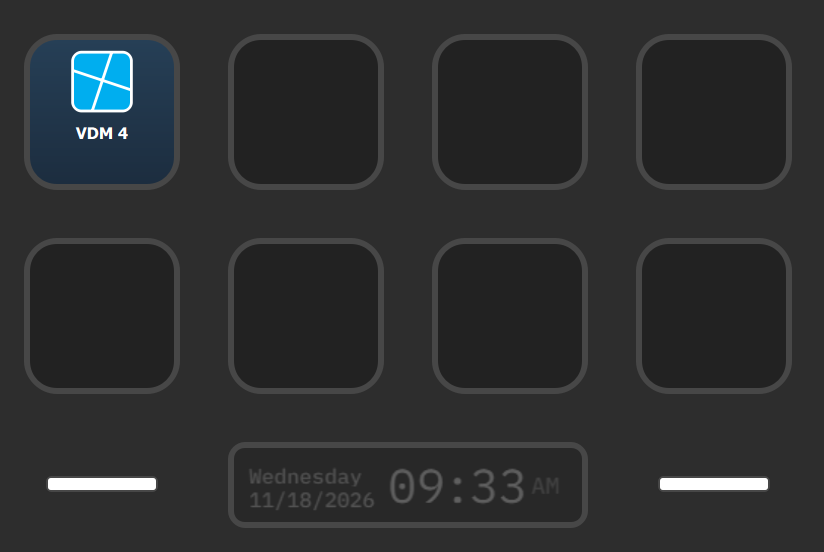
- Drag VDM menu onto one Neo key and press it to open the workspace menu.
Start with the VDM menu
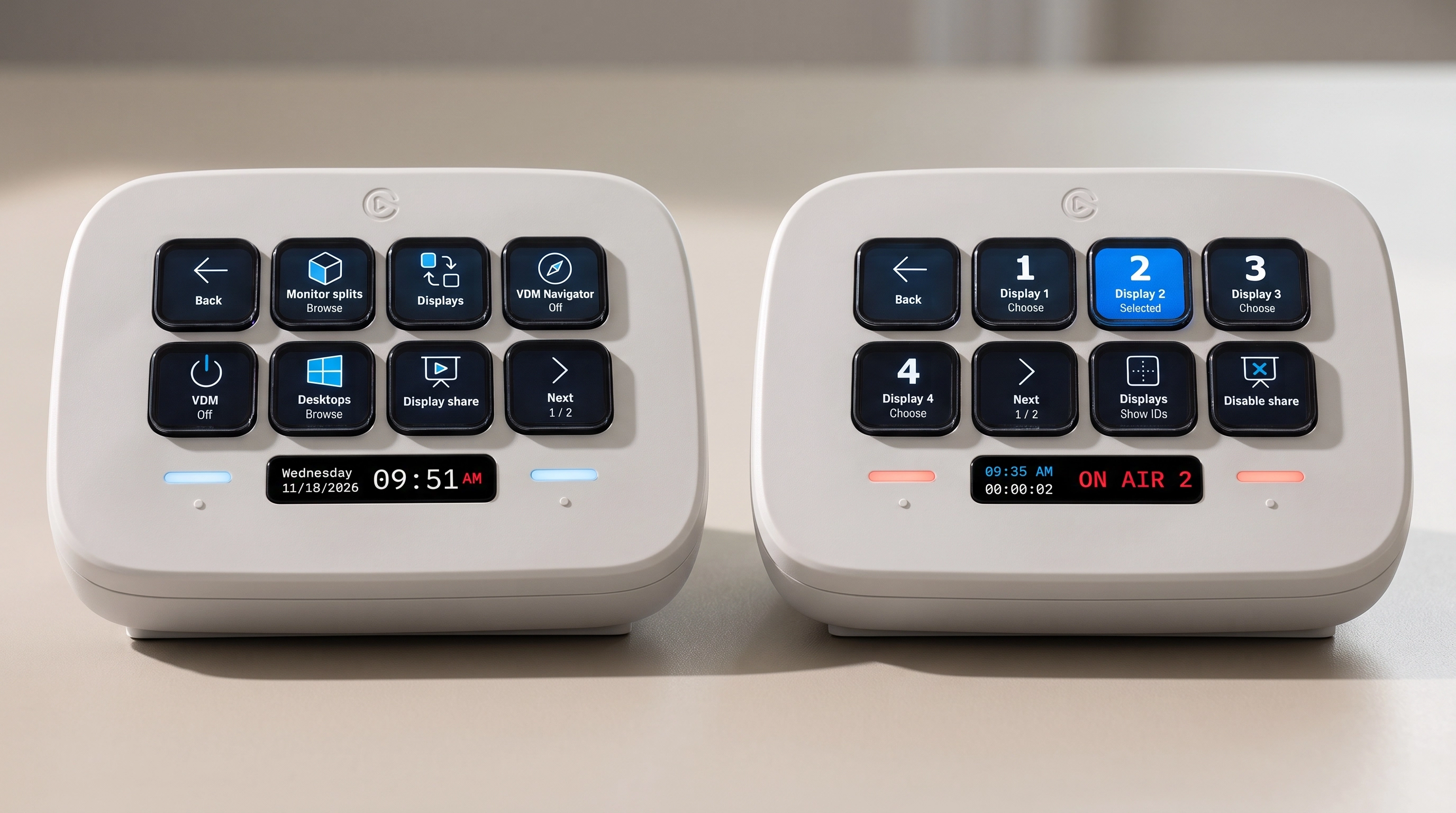
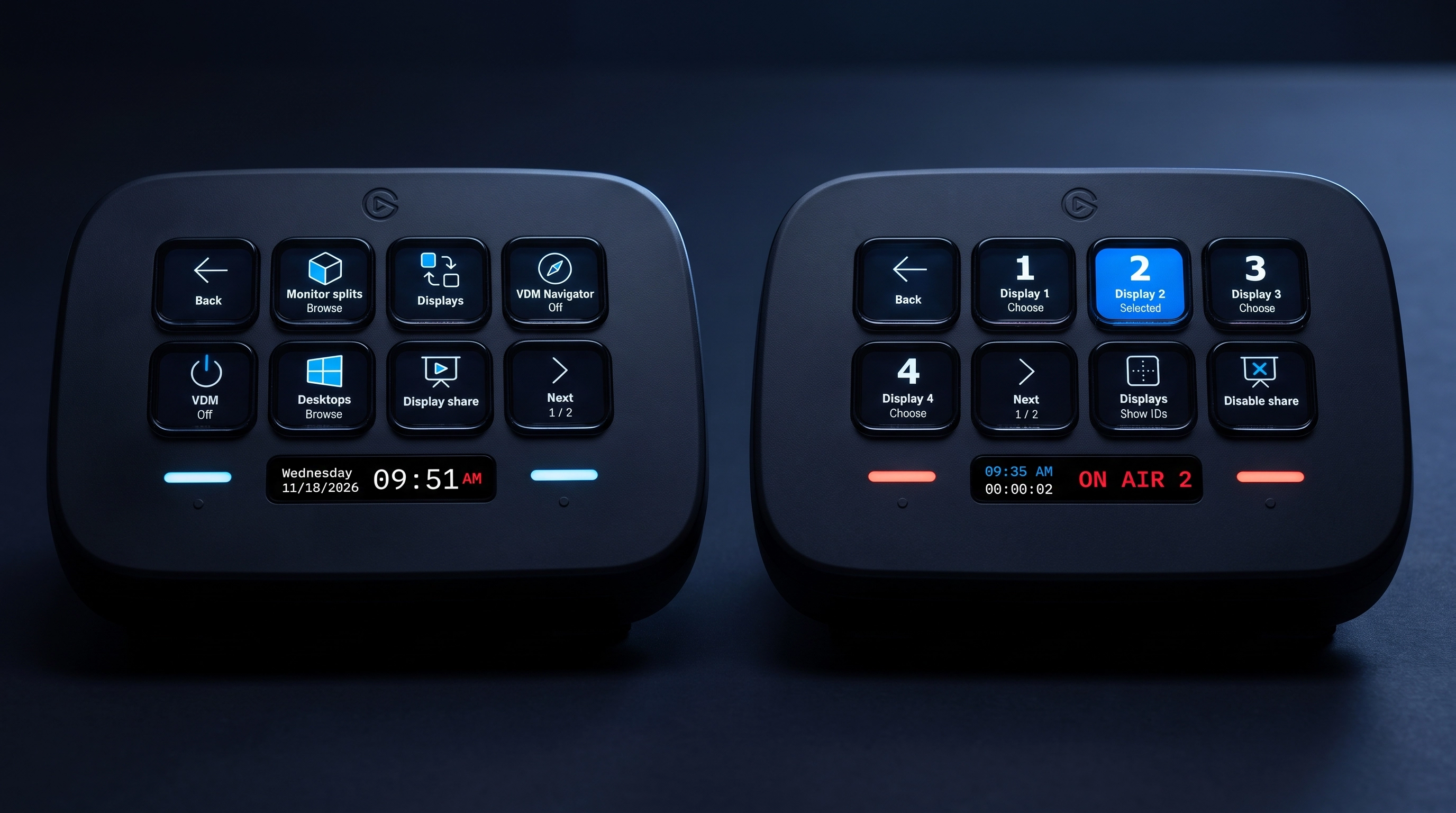
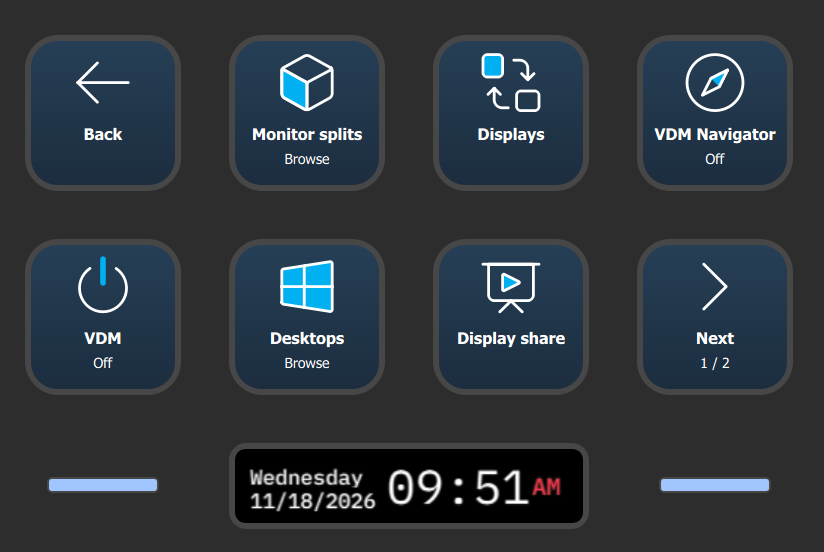
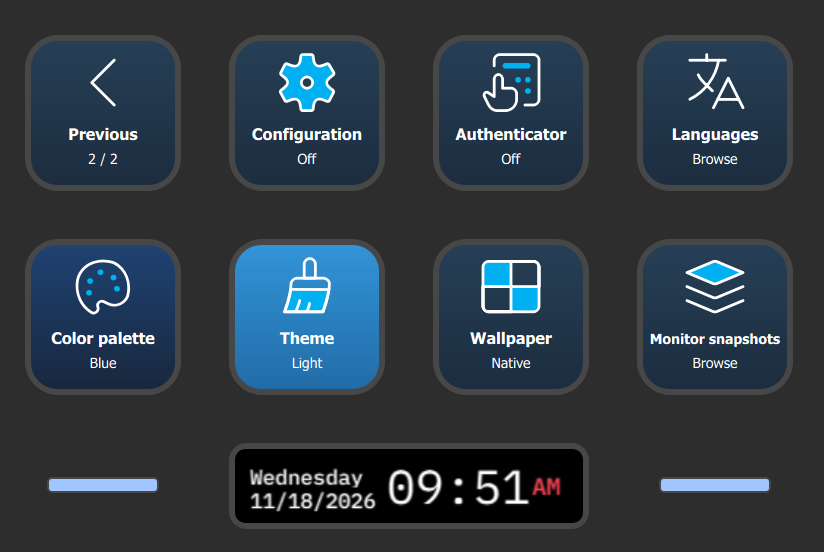
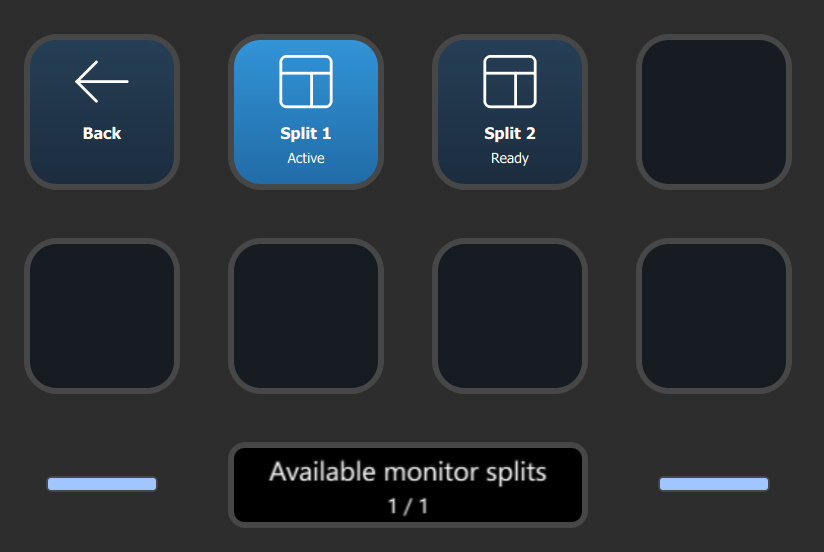
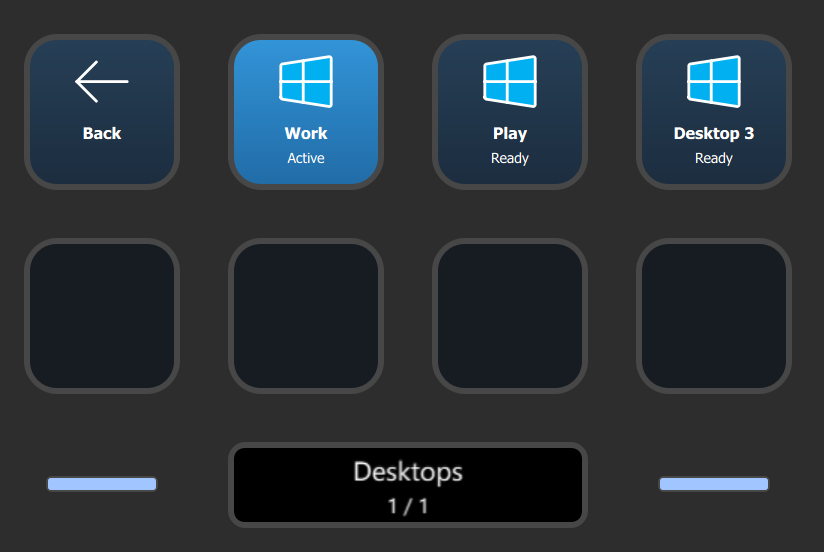
Press the VDM menu key to browse displays, saved monitor splits, snapshots and Windows desktops. Back returns to the parent; Next and Previous move through longer lists.
For frequently used controls, add individual VDM actions to your Stream Deck profile, such as a saved monitor split, VDM on/off or Show/hide Navigator.
Main menu · page 1
Open a feature
Change context
More than ordinary window repositioning.
VDM 4 works with windows in normal and maximized states. Move a single foreground window, move multiple windows associated with a display, or swap groups between displays. Choose the scope and destination without preparing each window by hand.
The display browser brings Move, Swap and foreground-window movement to the Neo. Maximized windows remain part of the workflow instead of becoming an obstacle to a workspace change.
Privileged applications belong here too.
VDM 4 can also handle privileged applications through its authorized Windows integration. Windows Task Manager is a practical example: programmatically moving and resizing it is a useful test of application reach, because tools without the required access may be unable to control it.
This capability uses authorized Windows access; it does not bypass Windows security.
Pixel-perfect splits. A place for each task.
Define useful virtual displays within your physical monitors, with pixel-perfect boundaries rather than a fixed set of equal halves, thirds or other hardcoded divisions. Save layouts suited to the work and switch between them from Stream Deck.
A VDM virtual display is a managed region within a monitor. Applications can maximize inside that region, keeping the rest of the monitor available.
Monitor affinity keeps the intent.
When the active monitor split changes, monitor affinity keeps maximized windows associated with their virtual-display IDs. Where possible, VDM also preserves or restores the position and size of normal windows.
The aim is continuity as the workspace changes, with less manual rearrangement. Normal-window placement remains best effort.
Dock. Undock. Mirror. Keep working.
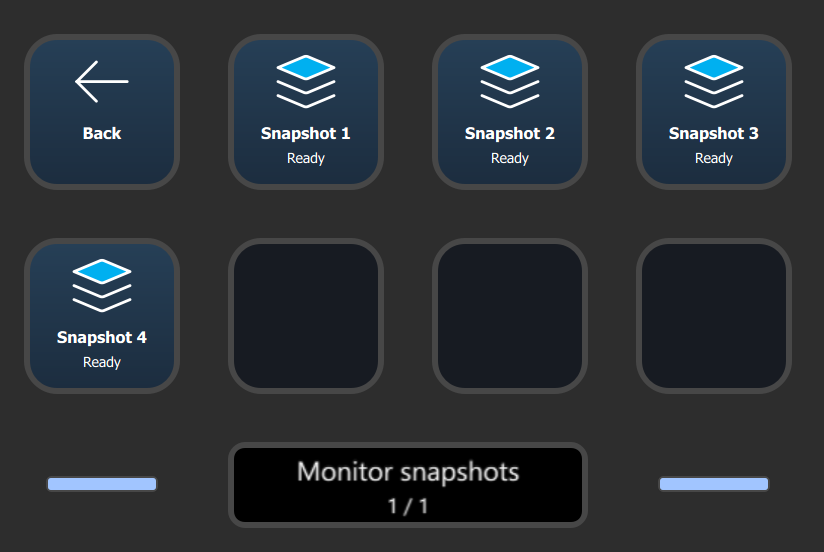
Monitor snapshots save physical-monitor arrangement and state. Recall a setup for the desk, the laptop or a supported mirrored configuration. Associate monitor splits with snapshots so the virtual workspace can adapt with the physical setup.
Switch Windows virtual desktops to separate projects or activities. Snapshots manage the physical arrangement; monitor splits organize screen regions; virtual desktops provide another layer of work context.
Restoration depends on the connected hardware and available display modes.
Switch the view. Keep sharing.
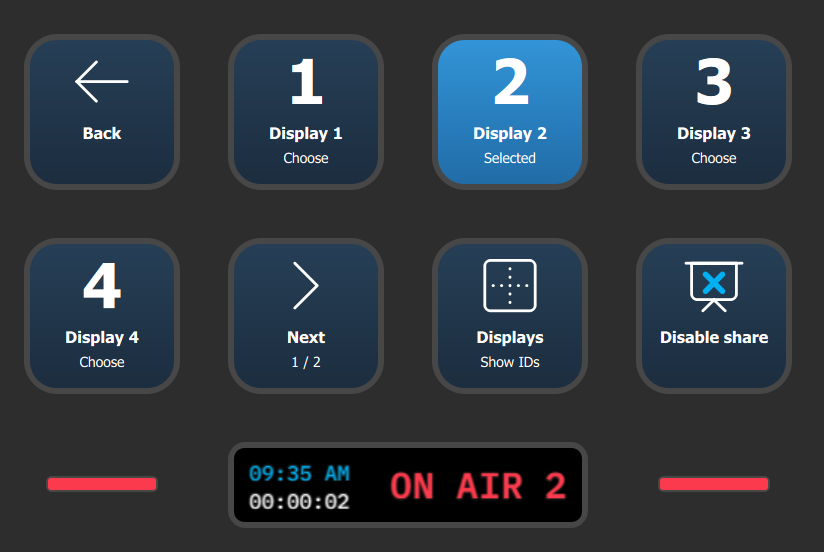
Present several related windows inside one VDM virtual display. The steps below let you change the selected region while your meeting application stays attached to the VDM sharing surface.
Choose the region
On Neo, open Display share, use Show IDs if needed, and select a numbered display. In Teams, Zoom or your meeting application, choose the VDM sharing window/surface and check the meeting preview.
Change the view
Tap another numbered display to switch the VDM sharing region. The timer resets for the new selection; you do not need to stop and restart the meeting share.
Finish sharing
ON AIR identifies the active VDM sharing surface; the meeting application controls broadcasting. Choose Disable share to close the VDM surface.
Choose your interface language
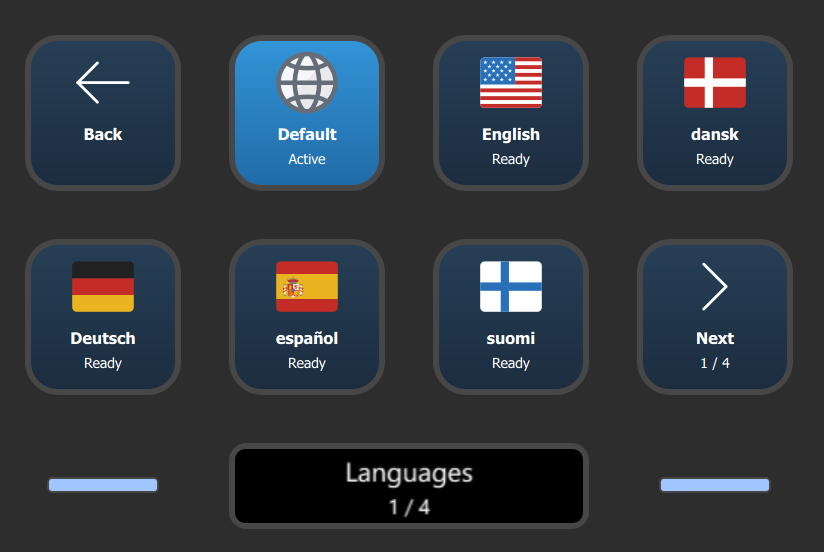
Open Languages from the second menu page to browse the available VDM interface languages. Use Next and Previous to move through the list, then select a language. Active marks the current selection; Back returns to the parent menu.
The illustrated browser uses recognizable language names and shows the current page in the Infobar.
Explore the complete workflow.
The illustrated guide expands on menu navigation, window control and display sharing.